

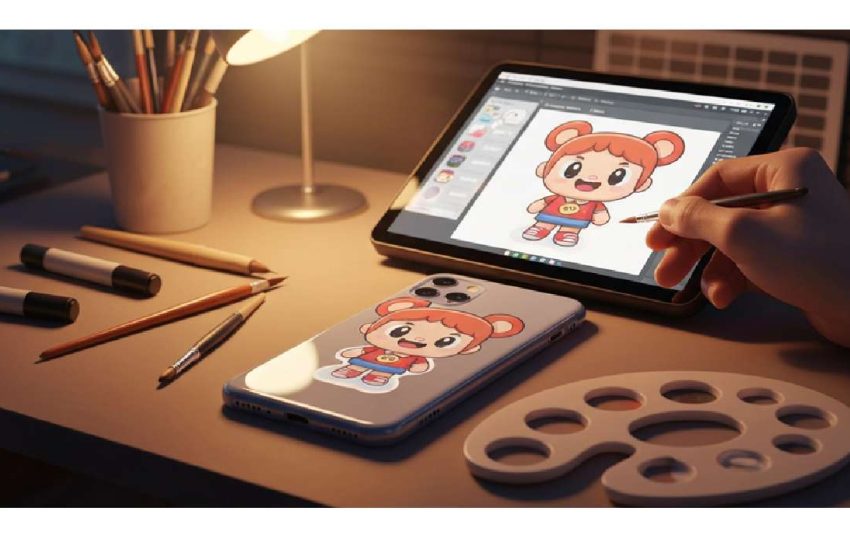
Pasting their cartoon to form over bags and case.
Have you ever created an amazing cartoon and wondered how it would look on a bag, case, or other merchandise? Bringing your digital art into the physical world can be exciting. Visualizing your cartoon on a product is a key step before you commit to production. This guide will show you simple and effective ways to paste your designs onto various items, helping you create stunning mockups that perfectly represent your finished product, whether it’s for a personal project or new packaging.
Table of Contents
Top Ways to Paste Your Cartoon onto Bags and Cases for Stunning Mockups
Pasting your cartoon design onto a bag or case is easier than you might think. There are several methods you can use to create a realistic preview, from simple online tools to powerful design software. The right approach depends on your skill level and how detailed you want the final mockup to be. Whether you’re designing for tote bags or phone cases, these techniques will help you visualize your work.
Creating professional mockups involves placing your cartoon over a product photo and making it look natural. This guide explores the best ways to do just that. We will cover everything from free mockup generator tools to advanced editing with software like Photoshop, ensuring you can produce a high-quality mockup that brings your cartoon to life.
1. Using Free Online Mockup Generators for Cartoon Designs
If you need a quick and easy way to see your cartoon on a bag, free online mockup generators are your best friend. These web-based tools are designed for simplicity, allowing you to create a professional-looking bag mockup in just a few clicks without needing any design experience. Many platforms offer a wide range of templates for various products.
The process is incredibly straightforward. You simply choose a template, upload your cartoon design, make minor adjustments, and download the final image. Many of these tools, like Mockey AI, even offer a free plan that lets you download mockups without a watermark. This is perfect for testing ideas or creating visuals for social media.
Some great features of online mockup generators include:
- A vast library of templates for different bags and cases.
- Support for common image files like JPG and PNG.
- Instant previews and downloads.
2. Applying Your Cartoon Image with Photoshop or Similar Editing Tools
For those who want more control over their mockups, Adobe Photoshop is the industry standard. It allows you to create highly realistic and professional mockups by giving you full command over every detail. This is ideal for when you need to present your cartoon designs in the best possible light, especially for client presentations or e-commerce stores.
The key to using Photoshop effectively is working with layers. You can place your cartoon on a separate layer above the product image and use tools to make it blend in. Features like Smart Objects are particularly useful, as they let you apply your graphics non-destructively, meaning you can easily swap out designs without starting over.
To achieve a realistic look in Photoshop:
- Use transformation tools to adjust the perspective and scale of your cartoon.
- Add shadows and highlights to match the lighting of the original photo.
3. Creating Visual Mockups in Adobe Illustrator
Yes, you can absolutely use Adobe Illustrator to create visual mockups, especially if your cartoon is a vector graphic. Illustrator is perfect for designs that require clean lines and scalability, like logos and detailed illustrations. While it’s not primarily for photorealistic rendering, it excels at preparing your graphics for placement on a mockup.
In Illustrator, you can create precise layouts and ensure your cartoon maintains its quality at any size. This is crucial when you’re working with vector art, as you never have to worry about pixelation. Many designers start in Illustrator to perfect their graphics and then move the design into Photoshop to place it on a photo-based mockup template.
With Adobe Illustrator, you can:
- Create and refine your vector cartoon graphics for perfect clarity.
- Prepare technical layouts and flat pattern designs before creating a 3D-style mockup.
4. Leveraging AI-Powered Mockup Platforms for Quick Previews
AI-powered mockup platforms are changing the game for designers and creators. These smart tools, often found in an AI image generator, let you test your cartoon art on different merchandise with incredible speed and realism. Instead of manually adjusting your design, the AI does the heavy lifting for you, creating stunning visuals in seconds.
These platforms often offer unique features that go beyond static mockups. For example, some AI tools can generate 3D or video mockups, giving you a dynamic preview of your product. You can quickly see how your cartoon looks from different angles or even on a model, providing a much richer visualization than a simple flat image.
AI-powered generators can help you:
- Quickly test your cartoon on a wide variety of products.
- Create professional-looking mockups with realistic lighting and textures automatically.
5. Working with PSD Templates for Seamless Cartoon Placement
One of the easiest ways to see how your cartoon will look on a case is by using a PSD template. These are pre-made Photoshop files specifically designed for mockups. They are structured with layers and, most importantly, “Smart Objects,” which act as placeholders for your artwork. This makes the customization process incredibly simple.
All you have to do is open the PSD file, locate the Smart Object layer (usually clearly labeled), and double-click it. This opens a new window where you can paste your cartoon design. Once you save and close that window, your artwork automatically appears on the case mockup, complete with all the realistic lighting, shadows, and textures from the template.
Using a PSD template offers several benefits:
- It saves a huge amount of time compared to creating a mockup from scratch.
- It ensures a professional and consistent result every time.
6. Customizing Ready-Made Bag and Case Templates with Your Artwork
If you’re wondering where to find templates for your cartoon graphics, you’re in luck. The internet is filled with resources offering ready-made templates for everything from a backpack to a phone case. Online mockup generators are a great starting point, often providing thousands of free templates that you can customize directly in your browser.
For those who prefer working with design software, marketplaces and design resource websites offer countless high-quality templates, many of which are available for free. These templates are perfect for achieving a specific look, whether you need a flat-lay view of a tote bag or a lifestyle shot of someone wearing a backpack with your cartoon on it.
To find the best templates:
- Search on free mockup generator sites for instant, browser-based options.
- Explore graphic design resource websites for downloadable PSD or vector files.
7. Ensuring High-Resolution Quality when Pasting Cartoon Graphics
To make sure your cartoon looks crisp and professional, you must start with a high-resolution image. If your source file is blurry or pixelated, it will only look worse when placed on a mockup. A low-quality image can ruin the appearance of your finished product, making it look unprofessional.
For the best results, use a PNG file with a transparent background. This allows you to place your cartoon on any colored or textured surface without a white box around it. Make sure your image has a high DPI (dots per inch), ideally 300 DPI, especially if you plan on eventually printing the design.
To maintain quality when creating your mockup:
- Always use a high-resolution source file of your cartoon.
- Export your final mockup image at a large size to preserve details.
8. Adjusting Cartoon Designs for Rounded and Uneven Surfaces
When placing your cartoon onto rounded or uneven surfaces, like the side of a backpack or a curved case, you need to make it look natural. A flat image placed on a curved surface will immediately look fake. The key is to make the design wrap around the object’s contours. This requires some careful customization.
In software like Photoshop or Illustrator, you can use tools like the Warp or Puppet Warp features to bend and shape your cartoon to match the product’s curves. It’s also important to consider how lighting would affect the design. Parts of the cartoon that are in shadow should be slightly darker, and parts in the light should be brighter.
When working with uneven surfaces, remember to:
- Use transformation tools to distort your cartoon to fit the product’s shape.
- Pay attention to seams and folds, ensuring your design doesn’t cross them unnaturally.
Essential File Formats and Image Requirements for Cartoon Mockups
Choosing the right file format is essential for creating high-quality mockups. The format you use can affect the sharpness, scalability, and transparency of your cartoon graphics. Using the wrong file type can lead to a blurry or unprofessional-looking final image, so it’s important to know which one is best for your project.
Generally, PNG, SVG, and JPG are the most common formats, but they serve different purposes. A PNG is great for transparency, while an SVG is perfect for scalable vector graphics that never lose quality. Understanding these differences will help you prepare your cartoon file correctly before you even start the mockup process.
Selecting the Best File Formats for Sharp Results (PNG, SVG, PSD)
When applying cartoon designs, certain file formats deliver sharper results than others. PNG is a top choice because it supports transparent backgrounds, which is crucial for placing your art on any item without a clunky white box. This makes your design look like it’s part of the product.
For cartoon graphics created in a program like Adobe Illustrator, SVG is the ideal format. As a vector file, it can be scaled to any size without losing quality, ensuring your lines remain perfectly crisp. Finally, PSD is the file format for Photoshop templates. These layered files contain all the elements needed for a realistic mockup, allowing for deep customization.
Choosing the right format ensures your finished product looks professional.
|
File Format |
Best For |
Key Feature |
|
PNG |
Placing designs with transparent backgrounds |
Supports transparency |
|
SVG |
Scalable vector cartoon graphics |
Maintains quality at any size |
|
PSD |
Using pre-made, layered mockup templates |
High level of customization |
Sizing and Resolution Tips to Prevent Pixelation
Nothing ruins a great cartoon mockup faster than pixelation. To avoid this, always start with a high-resolution image. A larger file size with more pixels will ensure that your design remains sharp and clear, even when scaled to fit on a large bag. As a rule of thumb, your image should be at least 2000 pixels wide for most mockups.
The resolution, often measured in DPI (dots per inch), is also critical. For digital displays, 72 DPI is often sufficient, but for mockups that might be used for print later, aiming for 300 DPI is a safe bet. This ensures that your finished product will look just as good on paper as it does on screen.
To prevent pixelation, follow these tips:
- Start with a cartoon image that is larger than the final display size.
- Save your final mockup in a high-quality format to preserve detail.
Pro Tips for Realistic Cartoon Integration on Product Photos
Creating a realistic mockup goes beyond simply placing your cartoon on a product photo. To make it truly believable, your design needs to look like it’s part of the product’s environment. This involves matching the lighting, shadows, scale, and perspective of the original image.
Whether you’re using Photoshop, Illustrator, or an AI image generator, paying attention to these small details is what elevates a simple mockup to a professional one. The following tips will guide you through the key steps to seamlessly integrate your cartoon for a photorealistic preview.
Matching Lighting and Shadows for a Natural Look
For your cartoon to look like it truly belongs on a product, it must match the lighting of the photo. Look at the original image and identify where the light is coming from. Does the bag have a strong highlight on one side and a deep shadow on the other? Your cartoon graphics should reflect that.
You can use adjustment layers in Photoshop to add your own highlights and shadows. For example, create a new layer and use a soft, white brush to paint a highlight where the light hits your cartoon. Then, set the layer’s blend mode to “Overlay” or “Soft Light” and reduce the opacity. Do the same with a black brush for shadows.
To achieve a natural look:
- Ensure the shadows on your cartoon match the direction and softness of the shadows in the photo.
- Adjust the brightness and contrast of your graphic to blend with the overall lighting.
Scaling and Positioning Cartoons for Real-World Context
How you scale and position your cartoon is crucial for a believable mockup. A design that is too large or too small for the product will instantly look out of place. Use real-world objects in the photo as a reference to get the proportions right. Think about how large the design would realistically be on the final product.
Positioning is just as important. Avoid placing your cartoon over major seams, zippers, or folds unless you can realistically warp it to fit. In programs like Photoshop or Illustrator, use perspective and transform tools to angle your design correctly so it follows the contours and surfaces of the bag or case.
For realistic scaling and positioning:
- Keep the proportions of your cartoon consistent with the size of the product.
- Use warp and perspective tools to make the design conform to the product’s shape.
Conclusion
In summary, pasting your cartoon designs onto bags and cases can transform your creations into eye-catching mockups that stand out. By utilizing various techniques such as online mockup generators, graphic editing software, and AI-powered platforms, you can achieve stunning results that showcase your artwork effectively. Remember to pay attention to file formats and image quality for the best outcome, and don’t hesitate to experiment with lighting and positioning for a realistic feel. Embrace your creativity and let your designs shine! If you have any questions or need further assistance, feel free to explore our resources or reach out. Happy designing!
Frequently Asked Questions
Where can I find templates for adding cartoon graphics to bags and cases?
You can find templates on free online mockup generator websites, which offer a wide variety of options for easy customization. Additionally, graphic design resource sites and marketplaces sell high-quality PSD and vector templates that you can download and use in software like Photoshop for a more detailed bag mockup.
What is the easiest way to preview my cartoon art on a case before printing?
The easiest way to preview your cartoon art is to use an online mockup generator. These tools let you upload your design, place it on a case template, and see the finished product in seconds. It’s a quick, simple method that requires no design skills to create a realistic mockup.
How do I maintain image quality when placing cartoons onto product mockups?
To maintain image quality, always start with a high-resolution cartoon file, preferably a large PNG with a transparent background. Ensure your file has a high DPI (300 is ideal for print). When you export the final mockup, save it at a large size to prevent pixelation and keep your design sharp.